If you want or need to be able to access and control your Raspberry Pi from outside your local area network (LAN), it’s a very good idea to disable password logins. This prevents hackers from being able to use/guess your password. In order to do this, we need to set up a public/private key pair and enable it for ssh login. This will make it almost impossible for a hacker to get into your Pi via ssh. The flip-side of that is the minor inconvenience of having to install your private key on any machine you want to log in with (but it’s not that big a deal really).
This has been done, based on a fresh install of Raspbian Wheezy 16 Aug 2012 edition, but will work on any version of Debian.
Ensure ssh is working.
We are going to be using ssh to do this process, so you need to ensure that ssh is working before we begin. Login to your Pi using your normal ssh procedure. Once logged in, you might as well stay logged in, as we will use the connection a little later on.
Create keys on your local computer, not on the Pi
You will need to use a program to generate a public/private key pair. The public key will be uploaded onto the Pi and you will use the private key on any computer (phone, tablet etc.) you wish to access it with. The private key must be kept private.
Many people rave about putty and puttygen. Putty is a very popular ssh client, and puttygen is the key generating part of putty. Here are instructions for generating a public private key pair with puttygen.
Creating keys with tunnelier
I use Bitvise Tunnelier, so here are instructions for how to create and export keys with tunnelier.
On the main screen click “user keypair manager”
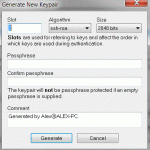
Then click “generate new”
Then click generate, unless you want to add a passphrase, in which case type that in twice and then click generate. A passphrase is an extra layer of security if you want to use your private key on shared machines. Your key will not be usable without the passphrase. I find it unnecessary. Your needs may be different.
Your keypair will now be created for you and you will be returned to the previous screen.
Click on the key you just created and then click Export.
Choose Export public key and Open SSH, then click Export, type a filename e.g. publickeyopenssh.txt
Now we’re ready to start working on the Pi itself.
In the home directory of the user you’re logging in as (/home/pi in the case of the default pi user) you need to create a special directory called .ssh
This process is easier if you are logged in as the user you want to set up (as the owner of the files and directories we are about to create will automnatically be the correct one).
cd ~ (the ~ is important – this will take you to the home folder of the logged in user)
pwd (print working directory – shows you where you are in the file system)
mkdir .ssh (Make a directory called .ssh The . is very important)
cd .ssh (change directory – go to the .ssh directory)
nano authorized_keys (Open/Create a file and call it authorized_keys. Note the z – British spelling will not work in this case.)
You now need to copy and paste the contents of your public key file into this nano window. So open the exported public key file on the machine where you created it and copy it across into the nano window (right-click, paste works from windows). Then,
CTRL+O (save)
Enter (confirm file name)
CTRL+X (Exit)
ls -l (list the contents of the .ssh directory, view permissions and ownership)
chmod 700 ~/.ssh/ (set permissions for the .ssh directory)
chmod 600 ~/.ssh/authorized_keys (set permissions for your key file)
ls -l (check permissions were changed properly)…
Notice that before we changed the permissions of authorized_keys, they were…
-rw-r--r--
afterwards…
-rw------- (r=read, w=write)
This is how it should be. We’ve just set the permissions so that nobody can read, write or execute your key file except pi (and super-users, like root).
Set up your ssh client to use your private key
In the latest Raspbian, (August 2012) public key ssh login is enabled by default, but so are passwords and there may be a couple of other things we want to change in the configuration file (like the port number).
So, at this point, you can already set up your ssh client (e.g. tunnelier or putty) to use your keys. In tunnelier, your keypair would have been allocated a slot number. Under initial method, choose public key – slot X, where X is the slot number you want.
Then, without logging out of your existing ssh session, try logging in using another instance of tunnelier, using port 22 and your public/private keypair. If this keyed login now works, it’s safe for you to disable password login (for ssh). Obviously, if you disable passwords before keys are working, you’ll lock yourself out from remote login :(
Edit the ssh config file /etc/ssh/sshd_config
sudo nano /etc/ssh/sshd_config
Somewhere in this file (usually on page 2 – CTRL+V for next page) should be a parameter
#PasswordAuthentication yes
This needs to be uncommented (remove the #) and yes changed to no
PasswordAuthentication no
You’ve now switched off ssh password logins – well nearly. We haven’t activated it yet. Before we do that, you might want to consider changing the port number as well…
Changing the ssh port number from the default 22
The world and his wife know that the default port number for ssh is port 22. It is a good idea to change the port to something non-standard and forward to that port from your router. You can also set up ssh to use more than one port, (e.g one for local “traffic” and another forwarded from external connections by your router).
Broadly speaking, you can choose any port number between 1 and 65535, but it’s worth checking on a list of commonly used ports to avoid messing something up.
If you want to change the port number, it’s near the top of the sshd_config file.
Port 22
You can just change 22 to your chosen port number, or you can add a new line with your new port number in if you want to use more than one port.
Port 777
Once you’ve done that, we need to save and exit the configuration file.
CTRL+O (save)
Enter (confirm file name)
CTRL+X (Exit)
If you’ve changed the port number, remember to change the port number on your ssh client as well, or you’ll be stuck wondering why you can’t login. :(
Restarting the ssh server
Your new ssh configuration settings won’t take effect until you restart the ssh server. You can either use this command…
sudo /etc/init.d/ssh restart
or you can reboot your Pi.
sudo reboot
And from now on, you will only be able to ssh into your Pi using keys and you have enhanced your security enormously. :) Good job! May your data always be safe and secure. (Of course this does not affect the normal console login if you are using keyboard and screen connected directly to your RasPi.)
Set up port forwarding on your router
All that will work fine on your LAN, but if you want access from outside, you’ll then have to set up port forwarding on your router. What you will need to do is log into your router’s control panel and set it up so that when you try to log into a specified port on your router (e.g. port 777 if that’s what you set ssh to listen on) all such traffic is diverted to the local ip address and port number of the Raspberry Pi.
An example. If your internet connection’s ip address is 111.222.333.444 and your RasPi is on 192.168.0.45 and you set up ssh to listen on port 777, you would need to set up port forwarding so that whenever anyone tries to access 111.222.333.444:YYY it would forward all that traffic to local ip 192.168.0.45:777 On some routers you can set the incoming YYY to whatever you like. On others it must be the same as the 777.
There are so many different types of routers, I’m afraid I can’t offer help with that part of the setup, or be more specific. But once you’ve got port forwarding set up, you should be able to ssh in from outside. If your internet provider gives you a dynamic IP address, you will probably need to look into something called DDNS to keep track of your ever-changing internet connection’s IP address.


