Why bother backing up your SD card?
There is some new information (September 2016) concerning Raspbian images and methods of SD card flashing that may be useful to you. How to flash an SD card with >4GB files
I had a difficult time getting the new Raspbian image up and running. That wasn’t because there was anything wrong with it. It was because I am in an unusual position. I’m away from base without my normal Samsung HDTV/monitor, and without ethernet, so I’ve been running my Pi “headless” via ssh and VNC, using wifi.
I’d also brought with me one of the Neewer HDMI-VGA adaptors that I’ve tested successfully on a couple of monitors. We have a TV here with a VGA input, so I figured this would be OK if needed (and it works fine with Wheezy beta – although I’m not using it).
So, when the new Raspbian image was released, I flashed a new SD card (well I overwrote my Arch card as I haven’t used it since I got FUSE working on Debian). Obviously I couldn’t ssh into a new installation until I’d installed the wifi dongle drivers (no ethernet). So in order to do that I needed to attach a screen. This is where the trouble started. With the Neewer HDMI-VGA adaptor attached, the new image failed to boot. Just the red power LED and nothing else (the same as happens when you have a corrupted SD card).
I eventually got it to work by removing the Neewer adaptor, powering up the pi, waiting until the green OK led started flickering and then attaching the Neewer, after which I could see enough of the display to get through the “first boot” screens. The timing was a bit hit or miss, but eventually I got the screen displaying properly by tweaking settings in the /boot/config.txt file. After that I installed the wifi drivers and it was bye bye screen. :laugh:
So how does this bring me to backing up? Well, I like to mess about with my installation trying new things. In the past if I messed up, I just reimaged the SD card and started again. In this case, I don’t want to go through that process again :cry: so I figured I’d back up an image of the fully working SD card before I break it. Now I’m going to show you how to do the same.
Using Windows
You may well have used Win32diskimager already to write your SD card. I’ve had great success with this using version 0.5. Download here. Then unzip the file win32diskimager-binary.zip, then double-click Win32DiskImager.exe in the unzipped folder called win32diskimager-binary. Click Yes to confirm you want to run the program. Then it will start. Once you’ve established that it works, close it down and plug in your SD card. Then restart the program. Choose the drive you want to copy the image from (in my case F:\).
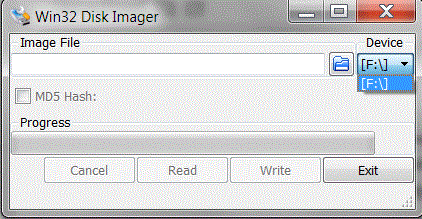
choose the drive with your SD card to read from
Then click on the folder icon and choose where to place your backup image – also give it a name e.g. backup345.img then click save

choose location and name for your backup card image
Then, the counter-intuitive bit. You have to click READ so it will read the SD card and write the image in the location you just chose.

click Read to read and backup your SD card
It might take a while. It took about half an hour to do an 8 Gb card. It will back up the whole image including empty space on the partitions. You can compress this later with winzip or 7zip, but if you want a really compact image you’ll have to shrink the partitions first and then regrow them later. Since messing with partitions is potentially disastrous – and what you’re trying to do here is protect your installation – I would recommend not shrinking the partitions. If you want to make an image to share with others by download, you could always do this AFTER you’ve backed up the data and then make another, more compact, image.
Using Linux
Use DD with extreme caution. It’s nicknamed Destroy Disk for a good reason. It’s a very powerful command and you can all too easily wreck your hard drive by being careless here.
dd if=/dev/sdb of=/path/to/backupfile.img
where sdb is the SD card location and backupfile must be a file name.img and not a disk identifier (or instead of writing a single file to the hard disk it will try to rewrite the whole disk).
This will copy the entire contents of sdb and dump it into the file backupfile.img
If you’re not sure what your SD card’s identifier (sdb, sdc etc.) is you can use the tail command as we did in the attaching a USB stick post.
Use DD with caution. You have been warned! If you have access to both, I’d say using the Windows option is safer, unless you really know what you’re doing (in which case what are you doing here? :-P )
Enjoy peace of mind now you know how to back up your Raspberry Pi Operating System SD cards.
[…] developed and updated image of Raspbian, so I made an exact copy of the SD card for Pi #2. (see: how to backup an SD card image here | how to write an SD card […]
I tried using the windows solution but it only reads and images the windows readable partition of the SD Card – approx 60 MB. Did I miss something?
Although Win32diskimager copies the whole card, you can only see the FAT partition in windows. If you plug the SD card into a linux machine you will see at least one other partition as well, depending on which distro you backed up. Or just try the card on your Pi and see if it works. :-)
Hi
I’ve got the same issue.
DiskImager seems only to backup the FAT boot-Partition. It does not backup the EXT4 partition, nor does any other image tool on windows.
The image file that it creates has just the size of 58 MB. So it cannot include the 16GB EXT4 partition.
Is there any solution for backing up the SD card on windows?
regards Ralf
is that 58MB the size reported by Win32diskimager or Windows Explorer?
How long does it take to write the image?
I would expect a 16Gb image to take at least 20 minutes, possibly significantly more.
Ralf replied, while I was moving servers…
[…] Ce post reprend les explications presente ICI et ICI. […]
My old fashioned way :
* assuming /dev/sdc is your SD card with sdc1 is the FAT boot partition and sdc2 the root extended file system
* backing up
sudo mount -o ro /dev/sdc1 /mnt
cd /mnt
sudo tar -zcvf /tmp/Backup/RPi/boot.tgz .
cd
sudo umount /mnt
sudo mount -o ro /dev/sdc2 /mnt
cd /mnt
sudo tar –exclude=var/log –exclude=lost+found -zcvpf /tmp/Backup/RPi/root.tgz .
cd
sudo umount /mnt
* to restore on a new SD :
– fdisk, parted, gparted to create the 2 partitions : one FAT and one EXT3 or EXT4
– mount each one after one in /mnt and change dir to /mnt
– finally restored with an extraction :
tar -zxvf boot.tgz
tar -zxvf root.tgz
8-)
Um, sorry, don’t understand…
“If you’re not sure what your SD card’s identifier is you can use the tail command as we did in the attaching a USB stick post.”
But you cannot boot the pi from the SD card and then tail the messages file while you plug in the SD card it already booted from!
ls -l /dev | grep sd
brw-rw—T 1 root floppy 8, 0 Nov 28 18:57 sda
brw-rw—T 1 root floppy 8, 1 Nov 28 18:57 sda1
This is my external 1TB USB drive, so I have no sd* device for my SD card the pi booted from!
Help required please because taking the SD card out for a windows cold backup is not going to be easy for me, I’m after 100% uptime and it’s going to be on a dark site…
That applies to taking the card out and putting it into a card reader in another Linux machine. If you don’t know what the ID of your card in the card reader is, use the tail command. Will update it so it’s clearer. :)
This procedure is not intended to be used for “in situ” SD card backup. There is a thread on the Pi forums where someone runs a backup on a live system. I suggest you seek it out. It’s not something I know how to help with. Sorry. :(
OK, thanks, makes sense now.
Plugged another SD card in via a USB dongle and the new SD card shows as sdb:
ls -l /dev | grep sd
brw-rw—T 1 root floppy 8, 0 Nov 29 00:21 sda
brw-rw—T 1 root floppy 8, 1 Nov 29 00:21 sda1
brw-rw—T 1 root floppy 8, 16 Nov 29 00:21 sdb
brw-rw—T 1 root floppy 8, 17 Nov 29 00:21 sdb1
brw-rw—T 1 root floppy 8, 18 Nov 29 00:21 sdb2
I guess sdb is the device, sdb1 is the boot partition and sdb2 the data bits and pieces.
I’ll go search for live backups.
Thanks,
Mart
Yes – that seems to be the case. :-)
I tried to follow the Windows instructions for saving the image with Win32diskimager and had a problem. I started Win32diskimager and it found my SD card. So I clicked on the folder icon and entered an image file name. But the Read button did not work.
To make the Read button work I had to enter the full path name in Win32diskimager in the Image File box.
In other words the folder icon only allowed me to navigate to an image not create a new image.
Yes, I found the same as Steve. As I didn’t want to overwrite an existing (good) image, I copied it in the same folder then renamed it (I wanted the a similar filename but including today’s date) before selecting it and starting the Read.
Rather more to the point, I’ve just tried 6 times unsuccessfully with various errors, the most prevalent of which is:
“An error has occurred when attempting to read data from handle. Error 121: The semaphore timeout period has expired.”
As I’ve tried using three different SD card readers, all of which work fine on my various cameras’ SD cards, I conclude that an 8GB partition is too much for Win32diskimage. I had thought that its only problem was defaulting to a file path of its choice, rather than the last one I used, even after I set the environment variable “DiskImagesDir” to my choice.
Any ideas of how to get round the read failure, please?
I use a Linux computer and “dd” to create all my SD card images these days. Most often the problems people have with Win32Diskimager are due to compatibility issues with the SD card reader. If it still won’t work with another card reader, I don’t know what else it could be.
PS Thinking that the version of Win32diskimager I have may not be up to date, I clicked on the Download link above and got “Launchpad.net
Lost something?
This page does not exist, or you may not have permission to see it.
If you have been to this page before, it is possible it has been removed.”
The download address that I used is:
http://sourceforge.net/projects/win32diskimager/?source=directory
Thanks. I updated the “making a new SD card image” page with that URL a long time ago, but thanks for flagging up this one, which I had overlooked. Amended to keep site up to date :)
And my final post before I give up for today:
You refer to ‘version 5’ of Win32diskimager; the version I loaded from the Sourceforge site is v0.8. Don’t know if the transition from Launchpad.net to sourceforge.net has reset the version number trail.
For those amongst you to whom these things matter:
I’m running Win32diskimager v0.8 under Windows Vista on an AMD Athlon 64×2 Dual Core 4600 2.40GHz with 205GB free on my HDD, a Kingston C4 8GB SDHC card in an Integral USB 2.0 SD card reader (have had the same result with another Integral USB 2.0 multicard reader and a LogiLink 5.25 inch Multifunction Front Panel). Yes the R-Pi boots up fine when the SD card is reinserted. The card had last been flashed with Win32diskimager yesterday.
The read failure I’m getting generally follows this path:
start the Read;
see the target file timestamped and its size knocked down to 0KB;
see half a dozen flickers of the data LED on my SD card reader;
see the target file size go up to ca 122Kb;
wait ca 2 minutes;
get the Read error.
However, the latest attempt saw 5-6 instances of the LED flashing episode, while Windows said Win32diskimager was ‘not responding’, followed by the Read error after about 10 minutes and a 122Kb target file …
As yesterday’s re-flash cost me about half a day in apt-get installs, upgrades and reconfigures (of CUPS, SAMBA, etc.) I’d like a foolproof method of backing up my hard work. Any helpful suggestions, please?
One foolproof (as in it works) option is to use a Linux computer or make a bootable flash drive for your windows PC
sudo dd if=/image_drive of=/output_file.imgwhere image_drive is the SD card reader drive (often something like /dev/sdc)
output_file.img is the image file you’re dumping the image into
Use dd with caution.
Thanks for your help, Alex. Since then, I made two more discoveries:
1) I tried the Win32DiskImager Read backup operation on a different SD card (a 4GB card containing a different distro) and it worked (or at least ran to completion).
2) Having tried a Windows ‘version’ of dd and failed to get it to do anything, I took your advice and ran dd on a Linux PC with my configured 8GB SD card, and got:
“ken@ken-laptop:~$ sudo dd if=/dev/sdb of=test.img
dd: reading `/dev/sdb’: Input/output error
245728+0 records in
245728+0 records out
125812736 bytes (126 MB) copied, 194.933 s, 645 kB/s”
So – Win32DiskImager appears to work on another SD card, and both Win32DiskImager and dd give up on my ‘real’ SD card after ca 122KB. My conclusion is that the 8GB card is beggared – yet it runs OK on my Pi!
If anyone can explain this, and even better come up with a solution, I’d be chuffed. :-)
Hmmm, very odd indeed, definitely sounds like a “funny” SD card! Good thing they’re so cheap nowadays…
Could you try
dd if=/dev/sdb1 of=test_part1.imganddd if=/dev/sdb2 of=test_part2.imgto backup the two partitions to two separate files, instead of backing up the whole disk all at once?May also be worth trying the “official” SD formatting tool mentioned on http://www.raspberrypi.org/downloads
With regards to the Win32DiskImager version numbers, when Alex said ‘version 5’ I guess what he was actually referring to was ‘version 0.5’ ;-)
You’re probably right though, as I have a source file with a 0.4 in it. Either way, I have the newer version now, and so should everyone else. There was a time when the older version seemed to work better, but I think they fixed that. Changed 5 to 0.5 in the article.
Thanks very much, both.
I tried copying the image in two chunks via dd, and it gave:
sudo dd if=/dev/sdb1 of=test1.img
114688+0 records in
114688+0 records out
58720256 bytes (59 MB) copied, 3.85108 s, 15.2 MB/s
sudo dd if=/dev/sdb2 of=test2.img
dd: reading `/dev/sdb2′: Input/output error
122864+0 records in
122864+0 records out
62906368 bytes (63 MB) copied, 190.14 s, 331 kB/s
– in other words, the 7GB partition stuffed up after 63MB, which, when you add in the 59MB from the successful first partition, gives the 126MB failure point from before (I may have said KB before – I was off my rocker at the time).
I’ve ordered some more 8GB cards, and will try a quick flash of the Raspbian distro I used before, then try to take an image after a minor configuration change – I’m sure it will work, thus proving my existing card is naff.
I’ve been using SDFormatter for about 6 months now – I checked the version and it’s 3.1 so I will update to v4, use it to format my existing card and try again.
Hmm, this is meant to be a hobby away from my day job as an IT support person … :-)
The difference in read speeds is also very interesting… a decent 15.2 MB/s for the first partition compared to a pathetic 331 kB/s for the second partition.
However I suspect this may be because the SD card reads at full speed until it gets to the “magic” (special?!) 126MB barrier, at which point it waits ages for the SD card to eventually time out and error, by which time the “average” transfer speed has dramatically dropped, because it’s been waiting ages while not actually doing anything.
The other option (I dunno if this is any more or less plausible) would be that the SD card somehow has slower read speeds the further you get from the beginning of the card!
I guess another interesting test you could do would be to fill the card with entirely random data:
dd if=/dev/urandom of=/dev/sdb(this will likely take quite a while)and then see if afterwards you can read any more than 126MB:
dd if=/dev/sdb of=random-data.img*WARNING* Be very careful with the above commands, if you specify the wrong device-name (e.g. if your SD card is at /dev/sdd instead of /dev/sdb) you could easily trash all the existing data on your hard drive(s)! As Alex says, if in doubt don’t even use
dd.I’ve trained myself to deliberately not use sudo on the dd command. This means that the first time I enter it, it tells me to get lost.
This forces me to have another look at the command before I type
sudo !!(run last command as sudo), which acts like a kind of double-check. I don’t mind that it takes a little longer (when compared with how long it takes to write a card or restore a system from scratch).Thanks Alex, Worked 100% first time :)
-I use Linux Mint as my basic OS. The “disks” utility that comes with the OS is perhaps a bit safer than dd in that; with the graphical interface is really easy to pick up on what you’re doing and double check what you’re really upto. The only bump I almost had was not recognizing, at first, that the “more actions” button at the top right was what I was looking for, to copy the entire card. The “more actions” button in diagram of the SD contents was only going to image one partition.
The utility also restores the image. Tested it today. Too easy. :)
[…] How to back up your Raspberry Pi SD card » RasPi.TV – Backing up the SD card for your Raspberry Pi. One day you might just need this, so get in the habit of backing up your SD card…. […]
I did this with a 16 GB card I had expanded to full and used in R_Pi. Worked just fine. Decided to ‘back it up’ on Win 7 Home (ugh) – all I have.
Finally got the full image onto my Win 7 machine. Then I formatted another 16 GB card using ‘SD Formatter’ (recommended on other linux sites…).
Then tried several ways to paste the image onto this new card. FAIL, fail, fail.
Problem is simple: the ‘img’ file backed up onto Windows is too large for the card, by some 87 MB.
So obviously this method simply will not work except in limited scenarios – where the card has not been fully expanded, or you
back up to a ‘larger’ card.
The method as stated, however, I think will fail with simple card-to-card.
Anyone with suggestions, please post.
1/31/2015.
That’s an unfortunate side-effect of the fact that different manufacturers decide to create cards labelled as e.g. “16GB” at very different sizes :-/ (or sometimes even different models / speed ratings of card from the same manufacturer have different sizes!)
I guess the only way to 100% guarantee getting a card ‘big enough’ for your 16GB backup .img would be to buy a 32GB SD card ;-)
If you’re able to boot a live-linux CD, you may be able to use some partitioning tools to “shrink” the size of your original .img file, but this is obviously something only for advanced users.
The ‘tar’ based backup approach identified in an earlier comment is more resilient to different-sized SD cards, but can’t be used on a Windows computer (unless you’re able to boot from a Linux LiveCD / LiveUSB).
There a brilliant script by sirlagz called autosizer.sh I use it for shrinking raspbian images for storage and reflasing. But it needs Linux. Probably works on a pi
Well now! How does one explain this:- backup an expanded 8Gb SD from the Pi using Win32DiskImager on a Win XP machine, reformat said SD using ‘official’ formating app, attempt to replace said backup on same card – ‘bombs’!! saying not enough space………. go figure :o(
Hmmm, AFAIK that shouldn’t happen. I assume you’re still using Win32DiskImager to write the backup back to the SD card?
Maybe try using H2testw to check your SD card isn’t fake?