Jun 292012
 

How to install Fuse ZX Spectrum emulator in Debian Wheezy Beta and Raspbian

On the Raspberry Pi site there is a thread about how to install this spectrum emulator in Arch. I figured it was time to have a go in Wheezy – just for the heck of it – and it worked. Not 100% – still can’t get it to make sound reliably and satisfactorily through HDMI, but I have managed to get it working well through the analog audio out – so you can use headphones or speakers to get those primitive speccy sounds. :yes:

The good news is it’s a lot simpler in the Debian Wheezy Beta as well. Just a couple of commands.

So, let’s get going…

Boot up your Pi into Debian Wheezy. Once logged in (command line), type

sudo apt-get install fuse-emulator-common

Y    to confirm that you want it.

This then installs fuse-emulator-gtk, libaudiofile1, libspectrum8 and opense-basic

It also suggested installing spectrum-roms and fuse-emulator-utils.

I tried running it without installing these and a message came up about not using the original spectrum ROM. So I installed the extra packages with…

sudo apt-get install spectrum-roms fuse-emulator-utils

Then, before you go into X, you may need to sort out the sound

sudo amixer cset numid=3 1 (You don’t need to do this in Raspbian).

Changing the final 1 for a 2 would force HDMI – but this didn’t work for me. It only works on headphone socket for me – pity, but a step in the right direction. I’ll have to attach some speakers as the sounds of manic miner are a bit too raw for headphones.

Then, to get to the graphical user interface (GUI) type…

startx

Once you’re in LXDE, click the LXDE iconicon in the bottom left of the screen and select

games > Fuse Spectrum Emulator (GTK+ version)

This will fire up the emulator. First thing you’ll want to do is enlarge the display by clicking the maximize square in the top-right of the FUSE window.

Loading a game

Then click

Media > Tape > Open

Then browse to where your tzx files are and select one and click Open. If your tzx contains more than one file, choose the one you want and click open. Then you will get a blank screen, that’s rather puzzling until you realise all you’ve done is simulated putting a tape in the tape recorder. You still have to load it.

Type J (LOAD)

then CTRL+PP (“”) and press enter

Your game will load – simply follow the on-screen instructions to play it.

If the sound is too loud, options > sound and change beeper volume to a lower figure.

At any time you can press F10 to exit FUSE.

Getting hold of games/software

Many spectrum games and programs can be downloaded from world of spectrum.

Jun 262012
 

Creating a new user with Sudo privileges in Debian on raspberry pi

Someone asked on the Raspberry Pi forums recently how to change the default pi user. There is a command usermod, which could be used to do this if you first created a root password. But there are a lot of reasons for not creating a root password (mostly security and “best practice” related – and people still disagree about it).

You can’t use usermod to modify the id you are currently using, so the only way to do it is to create a new user and give it the same privileges (ie make it a sudo user).

The easiest way to do this is from the command line…

sudo adduser username

…where username is the name you give your new user. Then you will be asked to key in a password twice. Make your password as long as you can manage. As much of it as possible should not be real words. This makes it harder to crack by brute force attack.

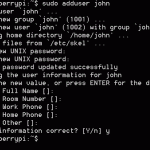
Then the system will ask you for further information about the user. You can leave these fields blank if you want – just press enter. When finished it will look like this…

sudo adduser john

Adduser will also create a home directory for the new user at /home/username

After that you can give them sudo privileges by editing the sudoers file…

sudo visudo

Use the cursor keys to navigate to the line below the entry for pi and copy it exactly, but use your new username instead of pi.

pi    ALL=(ALL) ALL
john  ALL=(ALL) ALL

Leave the pi entry there for now. This part of the sudoers file should look something like this, although on different installations the users may be different.

sudo user editing

Once done, you need to save the sudoers file. This is done with CTRL+O, then CTRL+X. You will see something like this…

sudoers saved

Testing your new username

Now, before we remove the pi username, we need to make sure that the new username you just created is working properly and with sudo privileges. First you’ll have to logout of your pi account.

logout

Then login again using your new username and password…

login

One way to test your new account has sudo access is to attempt to edit the sudoers file…

sudo visudo

output of sudo visudo, run as john

It made me type in user john’s password to access the sudo command. It won’t always ask for it.
If you want to remove the pi username from the sudoers list, you can simply delete the line containing the pi entry and then CTRL+O, then CTRL+X to save and exit. Then you’ll want to remove the pi user from the system.

Removing the pi user

If you are doing this to improve security (the world and his wife know the default username and password, after all) you might want to remove the pi user. (In the screenshots I’m removing the user john that I created for this example.) You can do this by logging into the new user account you just created, and typing…

sudo deluser pi to delete just the user account

You don’t have to, but if you want to remove the /home/pi directory as well, use…

sudo deluser -remove-home pi

deluser john

This will remove nearly all traces of the pi user from the system, which will make it much harder for anyone to break into your pi from outside (if it’s connected, that is). I don’t want to remove my pi user as I want my screenshots on other entries to look the same as other people using the pi user, so I removed the user john instead (in case you were wondering).

So now you have made your Raspberry Pi a bit more secure. Enjoy!

Jun 232012
 

How to safely shutdown or reboot your raspberry pi (Debian)

Of course, we all know you can shut down any computer by pulling the plug or switching off the switch. Most PCs can be forcibly switched off – even when they’ve crashed – by holding the power button down for 3 seconds. But we also know, or should know, that doing this isn’t good for the computer. For desktops and laptops, it can cause problems on the hard disk drive. For the Raspberry Pi, it can cause problems on your SD card. In fact it can corrupt your SD card so that you have to re-image it. Not a huge deal, unless you’ve just done a long compile and not yet backed up the files. :cry:

In the short month I’ve been ‘Pi’ing, I’ve only had one card need re-imaging (running an early version of OpenELEC). I don’t think it was down to an “unofficial hard reboot”* though because I don’t generally do them. I found out very early on how to shut down the Pi properly. You can do this, even when it’s crashed or frozen, as long as you have…

  1. ssh enabled, and
  2. access to another computer on the same network (you can even use your smartphone.)

But before we go into that, let’s talk about how to shut down the proper way when your system isn’t frozen.

So. What is the best way to shut down before you power off the Raspberry Pi?

sudo shutdown -h now (or sudo halt)

You can’t use shutdown (or halt) unless you have sudo privileges.

-h means halt the system
now means do it straight away. You could also add number 10 to tell it to shut down in 10 minutes. You can even give a specific time 19:45 (in 24 hour format with a : colon).

sudo shutdown -h now

Notice that when you give the shutdown command it sends out a message to all logged in users
“The system is going down for system halt NOW!”

If you are working directly on the Pi, within a few seconds you should get a message that the system has halted. If you are logged in through ssh, you’ll find that your console window will close.

If you merely want to reboot

To reboot, you can change the -h for -r like this…

sudo shutdown -r now (or sudo reboot)

sudo shutdown -r now

This time the message is…
“The system is going down for reboot NOW!”

So what if the system’s frozen?

That’s when ssh comes in handy. Use an ssh client program on another computer connected to the same network. Start an Xterm console window and use the above commands…

sudo shutdown -h now (or sudo halt) OR
sudo shutdown -r now (or sudo reboot)

…but be aware that when the system goes down or reboots, your ssh session will end (obviously, you can’t be connected to a machine which is shut down).

Good ssh clients are tunnelier and Putty (Open Source – Windows/Linux)

I may go into how to use ssh in another post when I get time :-D

________
* “unofficial hard reboot” = pulling the plug

Jun 212012
 

Installing Get_iplayer on Debian Wheezy Beta on the Raspberry Pi

Following on from my original posting on get_iplayer, which was installed on the Debian Squeeze distro for the Raspberry Pi, this is a set of instructions for the Wheezy beta release. It’s quite a bit simplified because we don’t need to bother with installing rpi-update, since most of the needed firmware updates are now incorporated into the distro. :-D  That’s progress for you.

Starting point assumptions.

I’m assuming that you have an internet connected Raspberry Pi with SD card (4 Gb & up – 2Gb is not enough for compiling FFMPEG)  booted up into a clean install of a Debian Wheezy distribution you got from the Raspberry Pi public beta announcement page. The current version at the time of writing is 2012-06-18-wheezy-beta.zip

If you have the Debian Squeeze Raspberry Pi release you need to click here and use these different instructions.

If you have the Raspbian Wheezy Raspberry Pi release you need to click here and use these different instructions.

If, you’re on Wheezy Beta, carry on with the instructions on this page.

sudo apt-get update

This will update your packages and may take a few minutes.

Next we need to install git, which is a version control system we will need to access the latest versions of various packages.

sudo apt-get install git-core
y to confirm when prompted.

Install Packages

Now, let’s navigate to a known starting point

cd /home

and install a required perl package.

sudo apt-get install libwww-perl
y to confirm

We’re going to use git to get the files, install the get_iplayer files, then build (compile) and install rtmpdump and ffmpeg from the latest source code.

rtmpdump is used for recording the iplayer stream. ffmpeg is used for transcoding (repackaging) the resulting flv file into an mp4 wrapper – which means we can view it on our Pi with Omxplayer or XBMC etc

Now you will need to get hold of the latest version of get_iplayer…

sudo git clone git://git.infradead.org/get_iplayer.git

This will create a new folder called get_iplayer in your /home folder. All the get_iplayer files are in this folder. Let’s go there…

cd get_iplayer

we need to make the get_iplayer file itself writeable or it won’t work properly, so…

sudo chmod 777 get_iplayer

This changes its permissions so it can be read, written to and run by anyone.

Let’s get back to our home folder so we know where we are.

cd /home

Now we’re going to edit a file which contains the sources of debian repositories. We’ll do this with nano – a text editor.

sudo nano /etc/apt/sources.list

Then use the cursor keys to get to line 2 and add…

deb http://www.deb-multimedia.org/ wheezy main non-free

Then
CTRL-X to exit
y to confirm you want to save
enter to confirm the filename (don’t change it)

sudo apt-get update

It will update some package lists and give two errors. W: GPG error and W: Duplicate sources… We’ll deal with those next…

sudo apt-get install deb-multimedia-keyring
y
confirm install without verification

Now the package update should work…
sudo apt-get update
sudo apt-get install libssl-dev librtmp-dev
y
to confirm install of the libraries required to build rtmpdump, which we’re going to do next.

Build and Install rtmpdump

Make sure we are still in the home folder.

cd /home
sudo git clone git://git.ffmpeg.org/rtmpdump
cd rtmpdump
sudo make SYS=posix

You will now see a some lines starting “gcc -Wall” and the process will take a few minutes. When it finishes, you’ve just compiled the latest version of rtmpdump. Now we need to install it…

sudo make install SYS=posix

You should then see some lines starting “cp” and “mkdir” as the files are copied over to their new homes. You have now compiled and installed rtmpdump. Congrats ;)

Test with
rtmpdump -v
to check you are running the latest v2.4 (at the time of writing). Ignore the hostname error. We’ve got what we wanted. Onward.

Build and Install FFMPEG

Now I’ve got some good news and bad news for you. The good news is that our typing is nearly done. The bad news is that FFMPEG is quite a large, complex program and takes about 3.5 hours to compile on the Pi. But as long as you know this, you can plan round it, right?

Let’s get back to home so we don’t end up putting FFMPEG inside the rtmpdump build folder.
cd /home

Now we need to install all the development libraries required to build FFMPEG. From sudo to libvorbis-dev is is all one line.
sudo apt-get install libfaac-dev libmp3lame-dev libx264-dev libxvidcore-dev libgsm1-dev libtheora-dev libvorbis-dev

Now let’s get the FFMPEG files themselves.

sudo git clone git://source.ffmpeg.org/ffmpeg.git

This is quite a large download and will take a little while (10-20 mins). Once complete…

cd ffmpeg

Note that the following command from ./configure to --enable-nonfree is all one continuous command.

sudo ./configure --enable-libmp3lame --enable-libtheora --enable-libx264 --enable-libgsm --enable-postproc --enable-libxvid --enable-libfaac --enable-pthreads --enable-libvorbis --enable-gpl --enable-nonfree

After a minute or so, you will get a warning about pkg-config not found. Ignore it. It’ll still work. Now to compile. :)

WARNING! Once you press <enter> for the sudo make command it will tie up your Pi for about 3.5 hours until the compile is finished. (If you are accessing your Pi via ssh, you might want to run it via screen, so you can detach and reattach without killing the process.)

sudo make

This will show you what it is doing as it goes. There will be lots of scary messages you don’t understand. Best go and do something else. And best run the “sudo make” directly on the Pi if you can. If you do it by ssh you’ll have to leave your other computer on and connected until it finishes.

Once compiled, the install is a fair bit faster (~2 minutes).
sudo make install
sudo ldconfig

So we don’t stumble across permissions issues, if you are going to be logging in as a normal user (pi) rather than root, we need to give ourselves ownership of these directories…

sudo chown -R pi /home/get_iplayer
sudo chown -R pi /home/ffmpeg
sudo chown -R pi /home/rtmpdump

It won’t work, for me, using the pi login without chowning the get_iplayer directory. I’m not 100% sure if it’s necessary to chown the ffmpeg and rtmpdump directories, but I can’t see it doing any harm.

Now your installation is finished, let’s try it out.

Starting using get_iplayer

Go to your get_iplayer directory

cd /home/get_iplayer
then
./get_iplayer
If it tries to update and gives an error message, make sure you have full permissions on get_iplayer
sudo chmod 777 get_iplayer

Run get_iplayer and once it’s finished updating plugins etc. It will update the program list. You’ll know when that happens you will see about 1000 programmes displayed.

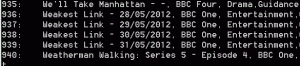
part of get_iplayer program list

part of program list

Then you use it like this.
./get_iplayer keyword (substitute keyword for a keyword in a programme title)

This will result in a list of programmes (or none) with that keyword in. Make a note of your chosen programme’s ID number e.g. 460

Then, to download programme 460, type this

./get_iplayer --get 460 --modes=best

This will download the program at the best available resolution to your get_iplayer folder on your SD card, which you probably don’t want. I generally put my downloads on a USB memory stick. You can redirect the download wherever you like using…

-o /path/to/file-destination

so for me, with a USB stick mounted at /media/usbstick, the full command would be…

./get_iplayer --get 460 --modes=best -o /media/usbstick

All those flashhd etc. options ensure you download at the best available resolution.

To mount a USB flash drive/memory stick or other device click here for the procedure

Back Up Your FFMPEG Compile?

One more thing. It might be a good idea to back up your compiled FFMPEG files in case you ever want to re-flash your SD card. If you copy it onto a stick – (here’s how to handle mounting a USB stick), you won’t have to recompile.

cd /home
sudo tar -cvzf /media/usbstick/targetfile.tgz /home/ffmpeg

This will make a full zipped archive of your ffmpeg files.

Well done and happy recording

I hope this has helped you learn how to install get_iplayer on the Raspberry Pi. Enjoy using it.

Jun 152012
 

Using Screen with Raspberry Pi to avoid leaving SSH sessions open (Debian)

Tested on Debian Squeeze, Wheezy Beta and Raspbian distros.

You may remember from the Get_iplayer installation instructions that I recommended not running the FFMPEG compile via ssh. The reason for this was because when you do something in ssh, if you close the ssh session it kills the process – game over (and that compile takes 3.5 hours).

Well I just found out about an excellent little program called screen, which enables you to run processes within a “terminal tty instance”. This allows you to disconnect and reconnect the instance containing the process. You can even log off the ssh session altogether and connect from a different computer, then reconnect the terminal tty instance and the process will still be there doing whatever it was doing when you disconnected. Cool.

Install

It’s really quick and easy to install. And easy to use too.

Here’s the text instructions, which are easy to follow. There’s a video at the bottom of the page.

sudo apt-get install screen

screen installation

It will take a minute or two to install.

Running Screen

Then, to use it, type…

screen bash

It will open another terminal instance. You can now start a process you want to be able to leave running and reconnect to later. For example, downloading something with get_iplayer.

Detach

To detach this terminal session, press

CTRL + A     release, and then press   D

Then you are back in the original terminal screen with the other one running detached in the background.

List all Instances

You can list all open screen instances and their status by typing…
screen -list

screen -list

Reconnect

…and you can reconnect to an instance with…
screen -r

If you only have one screen instance open, just -r will be enough. If you have more than one, you have to specify which one you want to reconnect with by typing its name after the -r

In this case…
screen -r 1245.pts-0.raspberrypi

screen -r 1245.pts-0.raspberrypi

Terminate an Instance

To end a terminal instance you need to be in that instance, then
CTRL + D   and it will end instantly (no warnings).

And here it is on Video

The sound might be a bit quiet – you might need to turn it up a bit.

This is tremendously useful if you want to leave a process running and possibly even ssh in from a different machine later on. It will even survive a dropped connection as well. Enjoy.

Jun 102012
 

External Storage – USB HDD

Sooner or later you will want to attach some sort of external storage to your Raspberry Pi’s USB port. We’ve already seen how to identify and mount a USB flash drive / memory stick. The procedure for mounting and using an external USB hard disk is very similar and equally easy. Until now, I’ve been using 8 Gigabyte memory sticks, but a lot of my media is on a 500 Gig HDD, so I found out how to attach and use that. I’m sharing it here as I think it may be useful to others.

Power Requirements

A device like a hard disk will almost certainly need more power than the Raspberry Pi is capable of providing from its built in USB ports. If your USB HDD takes its power from the USB port, you will have to use a powered USB hub. If your USB hard drive has its own external power supply, use that.

Mount a USB Hard Disk Drive on Raspberry Pi

First we need to find out where our system locates the device. Before you plug the USB device in, type…
tail -f /var/log/messages

You should then see something like this…

output from intial tail command

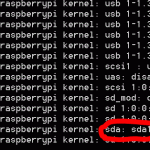
Now plug your USB hard drive into the USB port (if externally powered) or USB hub (if USB powered) and watch for new messages. This is what came up when I plugged mine in…

Tail output after plugging in USB hard disk drive

As you can see it gives you all sorts of info about the disk drive. The main part which interests us is the id that the computer gave it. In this case, sda1 (circled in red).

At this point, the tail command has served its purpose so we can kill it with

CTRL-C

Before we can mount the drive, we need to make a directory (folder) for it. You only have to do this the first time – you can use the same directory next time as it will still be there.

sudo mkdir /media/USBHDD (where USBHDD can be anything you like)

If you are logged on as root, you can attempt to mount it as an ntfs drive

mount -t ntfs-3g /dev/sda1 /media/USBHDD

If you are logged on as the default Raspberry Pi Debian user, pi, you will need to use this command to mount the drive with read/write permission.

sudo mount -t ntfs-3g -o uid=pi,gid=pi /dev/sda1 /media/usbdrive/

If that doesn’t work, it will give you an error message, then instead of ntfs-3g try vfat. Once you have it mounted, it’s time to explore…

cd /media/USBHDD
ls -l
(That’s both lower case letter l, not number 1)…

ls -l of mounted disk

This shows you the top level directory of the disk. You can navigate around to different directories with the cd command. cd stands for change directory. So, to change to “Audio Recording” we would need to type…

cd "Audio Recording" (we need the quotes because the directory name contains a space).

Then to look at what’s in Audio Recording…

ls -l which outputs the list of files and/or sub-directories in the directory…

ls -l gives contents of the folder

To change back up a level you can type…

cd ..

Then navigate to whichever directory you want on your hard drive and do what you wanted to do with it.

Unmounting

Once you’re done, before you unplug the USB lead from your drive, you need to unmount it with umount.

sudo umount /media/USBHDD

It won’t unmount if you are somewhere within the /media/USBHDD file system. If you are, type…

cd /media

and then try the umount command again.

unmounting the drive with umount

Note what happened when I forgot the sudo. (You need to use sudo or be logged in as root user to mount and unmount drives.)

Using HDD with media players

If you are using XBMC via OpenELEC, Raspbmc etc. your hard drive will be detected automatically. If you are using Omxplayer from the command line in Debian or Arch, you’ll need to mount the drive as above.

Jun 022012
 

Get_iplayer is an excellent program that allows you to download content streamed from the BBC’s iplayer server, to watch at a time convenient to you. What makes it excellent is that it is entirely under your control. There is no DRM or restrictions on the content you download. And you don’t need to have the iplayer app on your computer, which is a good thing because it won’t run on the Pi – no Flash.

It’s an Open Source iPlayer client, that works on pretty much any platform supporting PERL (which the Raspberry Pi certainly does). It also has PVR functionality and an HTML interface that I have yet to scratch the surface of.

How does it work? There’s a clever system for querying and searching the programmes available on the BBC iPlayer site. Once you’ve chosen what to record, it uses RTMPdump to record the incoming flash video stream and dump it in a file. Then once the whole thing is downloaded, it uses FFMPEG to strip the H.264 mp4 video out of the flash “wrapper” in a process called transcoding. (You have to learn a whole new language here ;) )

You end up with an H.264 mp4 file which you can watch on your Raspberry Pi using Omxplayer, XBMC, RaspBMC or OpenELEC – and in future, no doubt, many other media playing systems yet to be developed. You can also watch these on pretty much any other computer or media player. My Samsung TV can cope with these if I put the mp4 files onto a USB stick and plug it into the telly.

Some of the content is available in 720p HD (1280 x 720 pixels), but most programmes are available in at least 832 x 468.

I’d discovered and been messing about with get_iplayer on Ubuntu for about a month before LetHopeItsSnowing on the Raspberry Pi forums posted about getting it up and running on the Pi. It worked, kind of, almost out of the box. But it tended to time out a lot and when it did time out, it would hang the process.

RTMP timed out - trying to resume (but failing)

There followed a week or so of trying various approaches to getting it fully up and running with the latest versions of get_iplayer itself, RTMPdump and FFMPEG. I joined the get_iplayer mailing list and received excellent help and instructions from dinkypumpkin and tommy.

I decided to blog this, partly as a thank you to them, so that any future Raspberry Pi owning Linux newbs would have all the instructions they needed in one place at the end of a single URL.

I have now got my Raspberry Pi get_iplayer installation capable of downloading full length programmes in HD without timing out or giving error messages. If this is what you are after, read on. I warn you, though, it will take some time, but if you are relatively new to Linux, you will learn something – it will be well worth it.

We will cover getting hold of the latest package versions, installing required libraries, updating the raspberry pi firmware, and updating and locally compiling RTMPdump and FFMPEG, which should give you a stable install. So you shouldn’t have to see a 720p programme suffer an RTMP timeout at 97% downloaded, requiring you to start all over again.

Yay - it's resumed after a timeout.

Caveat operator

- let the operator beware! Things change with time. It is possible that something could go wrong. The Raspberry Pi firmware is updated regularly at the moment. That could mess something up. I’m showing you how to get the latest versions of some things. When these change it could mess something up. I may not know enough to help you if you run into problems. But others will.

There are no guarantees, but I have been through the entire process (including the 3.5 hour compilation) from scratch with a freshly flashed Debian install to check the procedure and give precise, complete instructions that could be followed by someone with no previous Linux experience.

Last of all, there’ll be some brief instruction in how to use get_iplayer to record your programmes. If this page gets too long I may split it over a couple of blog posts.

All commands you have to type will look like this…

type this command and then press <enter>

…which should make it easy for you. If you are logged into your Pi by ssh, you could even cut and paste to make it super easy.

Starting point assumptions.

I’m assuming that you have an SD card (4 Gb & up – 2Gb is not enough for compiling FFMPEG) Raspberry Pi booted up into a clean install of a Debian Squeeze distribution you got from the Raspberry Pi download page. The current version at the time of writing is debian6-19-04-2012.

If you have the Debian Wheezy Beta released on 19 June 2012, the instructions are different, click here to go to the Get_iplayer Wheezy Beta installation instructions.

If you have the Raspbian Wheezy Beta released on 15 July 2012, the instructions are different, click here to go to the Get_iplayer Raspbian Wheezy installation instructions.


The first thing we’re going to do is update it to the latest firmware using Hexxeh’s rpi-update.

Before we do that let’s ensure all our package information is up to date. It’s good practice to do this before installing something new. If you are logged in as the user called root, you won’t need the sudo, but including it won’t hurt.

sudo apt-get update

This will update your packages and may take a few minutes. If you get a message about “Duplicate sources… You may want to run apt-get update to correct these problems” go ahead and run it again.

sudo apt-get update

That should clear it. Now to the firmware update.
Instructions edited from https://github.com/Hexxeh/rpi-update

To install the tool, run the following command

sudo apt-get install ca-certificates
when asked
y to continue.

The certificates take a couple of minutes to install. Then type…
sudo wget http://goo.gl/1BOfJ -O /usr/bin/rpi-update
sudo chmod +x /usr/bin/rpi-update

To then update your firmware, simply run the following command:

sudo rpi-update

If it prompts you to install Git, do that now…
sudo apt-get install git-core
y to confirm when prompted.

This installs git, which is a version control system we will need to access the latest versions of various packages.

Now rerun rpi-update

sudo rpi-update

At the end of this, you should have up to date firmware. You will need to reboot.

sudo shutdown -r now

Install Packages

Assuming you got through that alright, let’s navigate to a known starting point

cd /home

and install some required packages. If you want a quick and dirty install of get_iplayer (I recommend doing it properly, so best to skip this one) to try out, use this command…

sudo apt-get install libwww-perl rtmpdump ffmpeg

These will take several minutes to install. Quick and dirty works some of the time, but I had issues with it timing out and not recovering – basically if the download times out, the process has to be restarted. It happened often enough to be annoying, so I looked for a better way. You can try this first if you want (it’s not irreversible).

If you want to do it “properly” with the latest versions of everything right from the start you need to leave out rtmpdump and ffmpeg at this stage like this…

sudo apt-get install libwww-perl
y to confirm

We’re going to build (compile) and install rtmpdump and ffmpeg from the latest source code for the “proper” version.

Regardless of whether you chose “quick and dirty” or “proper”, you will need to get hold of the latest version of get_iplayer…

sudo git clone git://git.infradead.org/get_iplayer.git

This will create a new folder called get_iplayer in your /home folder. All the get_iplayer files are in this folder. Let’s go there…

cd get_iplayer

we need to make the get_iplayer file itself writeable or it won’t work properly, so…

sudo chmod 777 get_iplayer

This changes its permissions so it can be read, written to and run by anyone.

Then, if you did a “quick and dirty” install, you should be good to go. Skip to the bottom to see how to start using get_iplayer.

If you’re on the “properly” track, we’ve got some more work to do, but it will be worth it when your install can withstand a timeout. Let’s get back to our home folder so we know where we are.

cd /home

Now we’re going to edit a file which contains the sources of debian repositories. We’ll do this with nano – a text editor.

sudo nano /etc/apt/sources.list

Then use the cursor keys to get to line 3 and add…

deb http://www.deb-multimedia.org/ squeeze main non-free

Then
CTRL-X to exit
y to confirm you want to save
enter to confirm the filename (don’t change it)

sudo apt-get update

It will update some package lists and give two errors. W: GPG error and W: Duplicate sources… We’ll deal with those next…

sudo apt-get install deb-multimedia-keyring
y
confirm install without verification

Now the package update should work…
sudo apt-get update
sudo apt-get install libssl-dev librtmp-dev
y
to confirm install of the libraries required to build rtmpdump, which we’re going to do next.

Build and Install rtmpdump

Make sure we are still in the home folder.

cd /home
sudo git clone git://git.ffmpeg.org/rtmpdump
cd rtmpdump
sudo make SYS=posix

You will now see a some lines starting “gcc -Wall” and the process will take a few minutes. When it finishes, you’ve just compiled the latest version of rtmpdump. Now we need to install it…

sudo make install SYS=posix

You should then see some lines starting “cp” and “mkdir” as the files are copied over to their new homes. You have now compiled and installed rtmpdump. Congrats ;)

Test with
rtmpdump -v to check you are running the latest v2.4 (at the time of writing). Ignore the hostname error. We’ve got what we wanted. Onward.

Build and Install FFMPEG

Now I’ve got some good news and bad news for you. The good news is that our typing is nearly done. The bad news is that FFMPEG is quite a large, complex program and takes about 3.5 hours to compile on the Pi. But as long as you know this, you can plan round it, right?

Let’s get back to home so we don’t end up putting FFMPEG inside the rtmpdump build folder.
cd /home
sudo apt-get install libfaac-dev libmp3lame-dev libx264-dev libxvidcore-dev libgsm1-dev libtheora-dev libvorbis-dev

From sudo to dev is is all one line. It installs all the development libraries required to build FFMPEG. Now let’s get the FFMPEG files themselves.

sudo git clone git://source.ffmpeg.org/ffmpeg.git

This is quite a large download and will take a little while (10-20 mins). Once complete…

cd ffmpeg

Note that the following command from ./configure to --enable-nonfree is all one continuous command.

sudo ./configure --enable-libmp3lame --enable-libtheora --enable-libx264 --enable-libgsm --enable-postproc --enable-libxvid --enable-libfaac --enable-pthreads --enable-libvorbis --enable-gpl --enable-nonfree

After a minute or so, you will get a warning about pkg-config not found. Ignore it. It’ll still work. Now to compile. :)

WARNING! Once you press <enter> for the sudo make command it will tie up your Pi for about 3.5 hours until the compile is finished. (If you are accessing your Pi via ssh, you might want to run it via screen, so you can detach and reattach without killing the process.)

sudo make

This will show you what it is doing as it goes. There will be lots of scary messages you don’t understand. Best go and do something else. And best run the “sudo make” directly on the Pi if you can. If you do it by ssh you’ll have to leave your other computer on and connected until it finishes.

Once compiled, the install is a fair bit faster (~2 minutes).
sudo make install
sudo ldconfig

So we don’t stumble across permissions issues, if you are going to be logging in as a normal user (pi) rather than root, we need to give ourselves ownership of these directories…

sudo chown -R pi /home/get_iplayer
sudo chown -R pi /home/ffmpeg
sudo chown -R pi /home/rtmpdump

It won’t work, for me, using the pi login without chowning the get_iplayer directory. I’m not 100% sure if it’s necessary to chown the ffmpeg and rtmpdump directories, but I can’t see it doing any harm.

Now your installation is finished, let’s try it out.

Starting using get_iplayer

Go to your get_iplayer directory

cd /home/get_iplayer
then
./get_iplayer
If it tries to update and gives an error message, stick a sudo in front of the command
sudo ./get_iplayer then
sudo chmod 777 get_iplayer

The above probably won’t be necessary for you, but it was for me because, as luck would have it, a new release (2.82) was pushed to git (published) while I was compiling FFMPEG to test this procedure.

Run get_iplayer and once it’s finished updating plugins etc. It will update the program list. You’ll know when that happens you will see about 1000 programmes displayed.

part of get_iplayer program list

part of program list

Then you use it like this.
./get_iplayer keyword (substitute keyword for a keyword in a programme title)

This will result in a list of programmes (or none) with that keyword in. Make a note of your chosen programme’s ID number e.g. 460

Then, to download programme 460, type this

./get_iplayer --get 460 --tvmode=flashhd,flashvhigh,flashhigh,flashnormal

This will download the program at the best available resolution to your get_iplayer folder on your SD card, which you probably don’t want. I generally put my downloads on a USB memory stick. You can redirect the download wherever you like using…

-o /path/to/file-destination

so for me, with a USB stick mounted at /media/usbstick, the full command would be…

./get_iplayer --get 460 --tvmode=flashhd,flashvhigh,flashhigh,flashnormal -o /media/usbstick

All those flashhd etc. options ensure you download at the best available resolution.

To mount a USB flash drive/memory stick or other device click here for the procedure

Back Up Your FFMPEG Compile?

One more thing. It might be a good idea to back up your compiled FFMPEG files in case you ever want to re-flash your SD card. If you copy it onto a stick – (here’s how to handle mounting a USB stick), you won’t have to recompile.

cd /home
sudo tar -cvzf /media/usbstick/targetfile.tgz /home/ffmpeg

This will make a full zipped archive of your ffmpeg files.

Well done and happy recording

I hope this has helped you learn how to install get_iplayer on the Raspberry Pi. Enjoy using it.

Jun 022012
 

How to mount a USB flash drive on Raspberry Pi

(or any other linux device)

First we need to find out where our system locates the device. With the USB device not plugged in, type…
tail -f /var/log/messages

Then plug in your USB device and, looking in the new lines which appear, make a note of the ID – it will be something like sda1, sdb1, sda2, sdb2 etc.

finding the ID of USB device

Then CTRL-C To stop the tail command.

In this case the usb stick id is sda1. That means the device is located in /dev/sda1.

Next, we need to create a directory under /media, so you will be able to mount your drive.

sudo mkdir /media/usbstick usbstick can be whatever you want to call it

Then we mount the usb stick with…

If you are logged in as root…
mount -t vfat -o rw /dev/sda1 /media/usbstick/

…where sda1 is its id from the tail command and usbstick is the directory you just made.

If you are logged in as the default Raspberry Pi debian user, pi, you will need to use…

sudo mount -t vfat -o uid=pi,gid=pi /dev/sda1 /media/usbstick/

…or you won’t get read/write access (the -o stands for options, uid is user id and gid is group id).

Then you can go there and have a look…
cd /media/usbstick
ls -l

result of ls -l command

…and you should get a listing of what’s on the USB stick you just mounted.

All Done?

When you want to detach the stick, unmount it with…

sudo umount /media/usbstick

And then you can unplug it safely. If the umount command says the stick is in use, you may have to close any programs using the stick or, if the current directory is /media/usbstick, simply change it to another directory, then unmount the stick…

cd /home

That’s all there is to it.

Jun 012012
 

To kick off this blog I am publishing some high resolution macro photographs of two Raspberry Pi model B computers. Since I have one from RS and one from Farnell it seemed like a good idea to put some good quality photos of the product out there. I’ve already put these on the Raspberry Pi wiki, so they are now out there under the Creative Commons attribution deed. You may use them as you wish as long as you put
© Alex Eames 2012 (Creative Commons)

Click any photo to see it full resolution


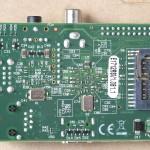
early production Raspberry Pi Model B from RS (12 13 pcb)


early production Raspberry Pi Model B from RS (12 13 pcb)

early production Raspberry Pi Model B from Farnell (12 18 pcb)

early production Raspberry Pi Model B from Farnell (12 18 pcb)

The Raspberry Pi is a very inexpensive ($35) credit card sized computer based on a Broadcom SoC with ARM and a powerful full HD capable GPU. It has been designed with the intention of helping to generate accessible interest in programming. It has generated a phenomenal amount of publicity and interest worldwide.

But there’s plenty of sites which cover all that. Here we’re going to try and help people learn a bit about how to set up and use the Pi itself.