Tested on Wheezy Beta and Raspbian distros.
I’m having fun and being a bit silly with tightvnc here. You can even use it to have a GUI for your Raspberry Pi from your Android phone. 8-)
TightVNC is a compact remote desktop application you can use with the Raspberry Pi. Stewart Watkiss has written an excellent explanation of how to install and configure it. I’m going to cover the basics, but for more detail visit his PenguinTutor VNC page
Install TightVNC on your Pi
sudo apt-get update
sudo apt-get install tightvncserver
That takes care of the installation. Now we need to start the vnc server…
/usr/bin/tightvncserver
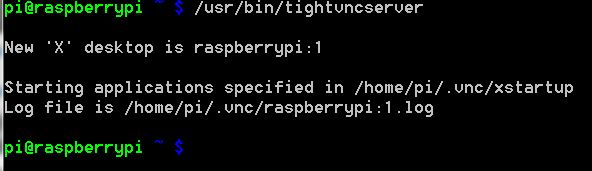
running tightvnc server
You will need a login password, but don’t bother setting up a view only password. You will have to type the above command every time you reboot unless you add it to the startup. Stewart covers that at the PenguinTutor VNC page.
Install Client App
Now you’ll need a client app for your other device(s). For windows, I got mine from http://www.tightvnc.com. For my Android phone I installed androidvnc (free – AND ad-free too) from google play.
On the windows version you don’t need to set up the server unless you want to – just the client part is enough.
Why bother?
I’m currently away from base and don’t have my nice HD TV/monitor to plug the Pi into. I do have my laptop, some speakers, my Pi and a wireless network though. That’s enough. As long as you can get both devices networked, you can VNC into your Pi and do pretty much everything you would be able to do without the need for another monitor.
Video of Chuckie Egg on PC and Reversi on Android phone. On Android, this chews through your battery very quickly. Be warned. Lots of fun to be had, but it’s doubtful you’ll get much sophisticated work done through Android because the touch interface makes it much harder than with a keyboard. (Look how many times I tried to close the Reversi window. For example, there’s no way I could have played Chuckie Egg on Android without some kind of bluetooth keyboard.
Most of my posts are rather educational. On this occasion I thought a little more fun was in order. Hope you enjoyed it. ;-)
Thank you very much for the information. The only thing to point out is that when you connect to raspberry from an external viewer you have to put you IP followed by “:1” supposing that the outputted desktop number from tightvnc is 1.
Thanks!!! Also tried for ages before i got this right.
LeGeNDuS,
Thanks to your point above I finally got the remote desktop up. I had been fighting it and couldn’t figure out what I was doing wrong.
Thank you
It worked great to show my rpi on my tablet, but it doesn’t fill the whole screen horizontally
No it doesn’t. That’s normal. It might be adjustable, but I don’t know how to do it. :)
Okay thanks, saved me some work
I think you can start vnc on the pi with the command
/usr/bin/vncserver :1 -geometry 1280×800 -depth 16 -pixelformat rgb565
where the 1280×800 represents the shape/size. I use it on my desktop set to full height and half width so it conveninently fill half the screen, letting me have a browser open in the other window next to it
I am hoping to use the R-Pi via remote (LAN only) desktop all the time once I get this sorted out. I first tried installing Teamviewer, which works well on Win 7 and Ubuntu 12.10 . But the .deb package is rejected as i386 when it wants armhf – fair enough I suppose.
So I found this article and I have installed tightvncserver on R-Pi OK and started it, and the Windows package on my Win 7 machine OK. Using the client on Win 7, I try to connect to raspberrypi:1 but get :
“Error in TightVNC Viewer: The requested name is valid, but no data of the requested type was found.”
Xtightvnc is listening on ports 5901 and 6001 but that’s all the diagnostics I can do from the command line.
Any help would be appreciated.
I’m just amazed at how far I’ve got in the first session on the Pi.
Hmm. Have you tried using the ip address instead of raspberrypi? They should both work, but you never know. Teamviewer is not available for the pi. ifconfig will show you your ip address.
Yes, I have tried that.
When I installed on R-Pi, the terminal was running as root (in Win 7 the instructions say you want to do that to handle reboot properly) so I uninstalled it and installed it as ‘pi’. When I start it, the terminal says “New ‘X’ desktop is raspberrypi:2”. So I try connecting from Win 7 to raspberrypi:2 and it says “Authentication failed”. After a few tries it locks me out. Is there any need to reboot in all of this?
Win7 to Win7 connections work OK, and the lack of the remote conferencing features of Teamviewer, and therefore simplicity, make TightVNC more suited to my situation.
I don’t use tightvnc much and I got confused the other day because I’ve got three Pis on the network now.
I was trying to connect using the ip address that showed up when I log in via ssh, which in fact shows you the ip address of the machine you last logged in from. It’s probably not that, but once I started using the ip address of the Pi it worked a treat.
I’m slightly suspicious why it says raspberrypi:2 and not raspberrypi:1, which is what mine says. You’ve not got two instances of tightvnc server running have you?
I’m not really an expert in using tightvnc, perhaps someone on the Pi forums might be able to help you in more depth. Hope you get it going :)
It is probably not tightvnc’s fault.
I’ve just created a new user and tried to login as that, and it doesn’t work “incorrect password”.
Switching to pi forums.
Many thanks.
Wowzer, when you said that you had a hard time closing the window you sure did. :-P
’twas a bit tricky – yeah :)
I have set vnc to run on boot up and I can access the computer just fine but on certain programs I run I get a $DISPLAY error. I can fix this by by opening a second port with smaller geometry….
Ex:
vncserver :2 -geometry 800×480
…..is there a way to go into my boot up code for port 1 and fix it on boot up?
There must be a way. Unfortunately I don’t know how to do it. I suggest a question on the Pi forums. :-)
Hello Folks,
after I reboot my Raspberry i cant login anymore … the default passwort and login wont work and neither does the new password for the server … I already reinstalled rasbian …
any clues?
Is your keyboard fully functional?
yes it is. Does it may have something to do with that I use startx automaticly at boot?
It might be. Can you disable it? Can you log in through ssh and change it?
I could not get this working on android although it worked on linux laptop.
Then I changed the port number on Android VNC to 5901 instead of 5900 and it worked.
I have installed tightvnc on my pi and tightvnc-jarviewer on my PC After I start the viewer and pot in all the parameters i get “handshaking with remote host” and this window does not close to show the pi GUI I am using jessie on my Pi What am I doing wrong
Hi, I have been trying to install tight vnc viewer on my Ras Pi but it wont do it! I get the message, failed to get mirrordirector.raspbian.org or unable to fetch some archives. Now, I have gone through the steps exactly as shown but to no avail, what is wrong and how can I correct this? Please guys, your help would be much appreciated.
Hi Guys, I have the VNC viewer up and running on my PI. The refresh rate even when the Pi is connected locally on a switch with the server Pc connected is not great. It would represent around 1 frame per second. Simultaneously over my wireless LAN to my iphone is fine. Any ideas how to improve this?
Hi Guys. If you are remotely controlling the raspberry pi using android phone and you connect the raspberry pi to the monitor. Is it possible to see on the monitor that is connected to the raspberry pi what you’re doing on the android phone?
It must be possible in some ways, but not easy. It would depend on exactly what you were trying to do.
Is it possible to command the I;Os of the raspberry pi3 by this? I need to do it but I have no experience with Raspberry.
Can you help me please?